Products
-
 Unified Communication System
 -
 All In One VoIP Phone System
 -
 Class 5 VoIP Softswitch
 -
 Carrier-Grade VoIP Billing
 -
 Calling Card Solution
 -
 Wholesale Softswitch Billing
 -
 Call Center Solution
 -
 Cloud PBX & Contact Center Solution
 -
 Multi-Tenant PBX
 -
 IP PBX System
 -
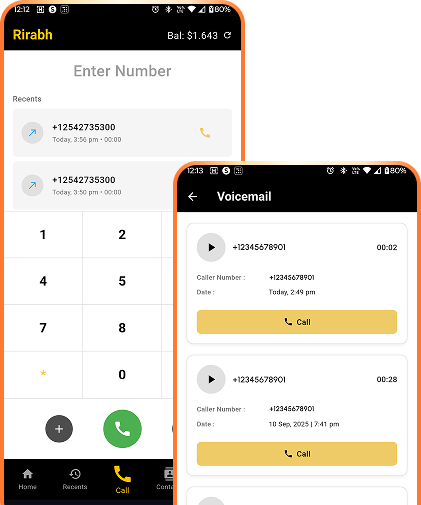
 White Label Mobile Softphone
 -
 Multi-Platform Softphone
 -
 Call Tracking & Analytics Solution
 -
 SMS Gateway
 -
 AI-Powered IVR
Services
-
 Softswitch Development
 -
 Softphone Development
 -
 OpenSIPS / Kamailio Development
 -
 FreeSWITCH / Asterisk Development
 -
 ASTPP / Magnus Billing Development
 -
 Fusion-PBX Development
 -
 WebRTC Development
 - Audio/Video Conferencing
-
 Chatbot Integration
 -
 Conversational AI Integration
 -
 Live Streaming & Broadcasting
 -
 DevOps Services
 -
 Webinar Services
 -
 Web Development
 -
 CRM Integration
 -
 Digital Marketing
 -
 UI/UX Design
 -
 E-Commerce Development
 Our Work
 About us
 Contact us