Development environment
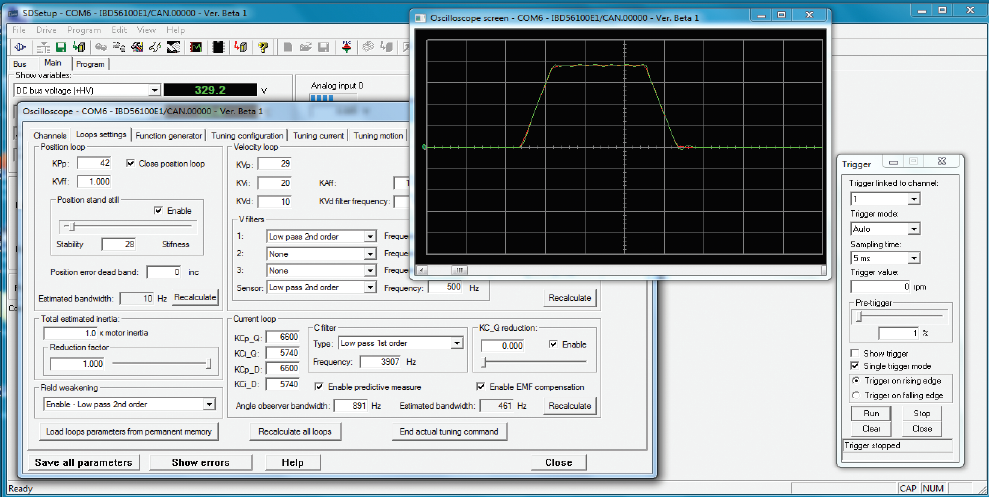
SD SETUP
SD SetUP is the development environment to manage all CMZ servo drives (stand alone, integrated, nearby):
configuration
parameterization
tuning
programming
by using the RS232 serial connection or a centralized connection through a fieldbus (when the master controller is a controller of CMZ FCT series).
SD SetUP combines different functions:
- Instant monitor of the main variables of the system, but also of secondary variables
- System configuration (such as: configuration of digitals I/O modules, maximum speed/ acceleration range)
- Updating of parameters and firmware
- Auto-tuning and dedicated tuning of current loops, speed and position
- Oscilloscope for the analysis of variables
- Tools for the testing of basic movements (Function Generator)
With SD setup it is also possible to edit end debug the programs written in IEC61131 type Structured Test.